0%

[swift] IOS地圖運用 (3) 客製Annotation View

繼續接續上一篇,我們來把大頭針改成自己想要的樣子吧,已這張圖為例
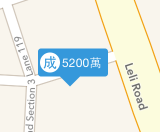
  • 從上面那張圖可以看出來需要畫一個長方形,長方形裡面有一個title與圓形Icon,還需要一個倒三角形把它組回去,所以先來把這些元素準備一下吧
    首先先建立一個Class繼承MKAnnotationView ```swift
    import Foundation
    import MapKit
    public class MyAnnotation : MKAnnotationView {
    var rectangoView:UIView!; //長方形
    var lblTitle:UILabel!;//Title
    var lblIcon:UILabel!;//圓形icon
    var circleView:UIView!; //原型view
    var triangle:UIView!; //三角形
    public override init(annotation: MKAnnotation!, reuseIdentifier: String!) {

      super.init(annotation: annotation, reuseIdentifier: reuseIdentifier);
    

    }

      public required init(coder aDecoder: NSCoder) {
      super.init(coder: aDecoder);
    

    }
    }

1
2
3
4
5
6
7
8
9
10
11
12
13
14
15
16
17
18
19
20
21
22
23
24
25
26
27
28
29
30
31
32
33
34
35
36
37
38
39
40
41
42
43
44
45
46
47

* 接著把每個圖形間的關係組合起來,例如圓形跟title都在大大的長方形裡面,所以先將他們add到rectangoView裡面 ```swift
import Foundation
import MapKit
public class MyAnnotation : MKAnnotationView {
var rectangoView:UIView!; //長方形
var lblTitle:UILabel!;//Title
var lblIcon:UILabel!;//圓形icon
var circleView:UIView!; //原型view
var triangle:UIView!; //三角形
var DrawView:UIView!;//整個客製座標的畫布
public override init!(annotation: MKAnnotation!, reuseIdentifier: String!) {
super.init(annotation: annotation, reuseIdentifier: reuseIdentifier);
//先把每個圖層間的關係建立好,例如圓形跟title都在大大的長方形裡面,所以先add進去
lblTitle = UILabel();
lblIcon = UILabel();
rectangoView = UIView();
circleView = UIView();

circleView.addSubview(lblIcon);
rectangoView.addSubview(lblTitle)
rectangoView.addSubview(circleView);

//畫出三角形遮罩
//原理:將遮罩蓋到長方形上面,他會將不再這個框框範圍內的都過濾掉,就可以跑出三角形了
let path:UIBezierPath = UIBezierPath ();
path.moveToPoint(CGPoint(x: 0, y: 0));
path.addLineToPoint(CGPoint(x: 10, y: 10));
path.addLineToPoint(CGPoint(x: 20, y: 0));
path.addLineToPoint(CGPoint(x: 0, y: 0));

let masklayer:CAShapeLayer = CAShapeLayer ();//遮罩
masklayer.path = path.CGPath;
//遮罩遮出三角型
triangle = UIView(frame: CGRect(x: 22, y: 28, width: 20, height: 20));
triangle.layer.mask = masklayer;
DrawView = UIView();
DrawView.addSubview(rectangoView);
DrawView.addSubview(triangle);
self.addSubview(DrawView);
}

public required init(coder aDecoder: NSCoder) {
super.init(coder: aDecoder);
}
}

  • 接著在MyAnnotation寫一個function來詳細畫這個View的內容 ```swift
    public func DrawCustomerView() {
      //Title
      lblTitle.text = "5200萬";
      lblTitle.textColor = UIColor.whiteColor();
      lblTitle.font = UIFont.systemFontOfSize(12);
      lblTitle.sizeToFit();
      //大大的長方形
      rectangoView.frame = CGRect(x: 0, y: 0, width: lblTitle.frame.width + 30, height: 28);//整體
      rectangoView.backgroundColor =  UIColor(red: 0.208, green:0.596 , blue: 0.859, alpha: 1);
      rectangoView.layer.cornerRadius = 3;//設定圓角
      //“icon”圓型小字
      lblIcon.font = UIFont.systemFontOfSize(11);
      lblIcon.font = UIFont.boldSystemFontOfSize(14);
      lblIcon.text = "成";
      lblIcon.textColor = rectangoView.backgroundColor;
      lblIcon.sizeToFit();
      lblIcon.center = CGPoint (x: 10, y: 10);
      //圓形
      circleView.frame = CGRect(x: 2, y: 4, width: 20, height: 20);//圓形標籤
      circleView.backgroundColor = UIColor.whiteColor();
      circleView.layer.cornerRadius = 10;
      circleView.alpha = 1;
      //畫三角形
      triangle.backgroundColor =  UIColor(red: 0.208, green:0.596 , blue: 0.859, alpha: 1);
      //rectangoView.Transform 旋轉
      DrawView.frame = CGRect(x: 0, y: 0, width:triangle.frame.width,height: 48);
    
    }
1
2
3
4
5
6
7
8
9
10
11
12
13

* 接下來修改view controller的viewForAnnotation事件如下 ```swift
func mapView(mapView: MKMapView!, viewForAnnotation annotation: MKAnnotation!) -> MKAnnotationView! {
var ann : MyAnnotation? = mapView.dequeueReusableAnnotationViewWithIdentifier("CustomerPoint") as? MyAnnotation;
if(ann == nil){
ann = MyAnnotation(annotation: annotation, reuseIdentifier: "CustomerPoint");
ann?.canShowCallout = true;
}
ann?.DrawCustomerView();
ann?.annotation = annotation;
return ann;
}

  • 立馬執行看看,你會發現發生錯誤在MyAnnotation class,而且錯誤訊息寫得不清不楚的,這是第一個地雷,雖然繼承MKAnnotationView沒有要求一定要實作init(frame: CGRect),但不做會壞掉喔,那到底幹麻不列為required阿!!!所以乖乖補上到MyAnnotation就正常摟 ```swift
    override init(frame: CGRect) {
      super.init(frame: frame);
    
    }
1
2
3
4
5
6
7

* 這時候會發現畫面長這樣...
[![](http://4.bp.blogspot.com/-OGPbgnJnyH0/VPVpfcMNstI/AAAAAAAAEcs/NGAf74G1IoU/s1600/%E8%9E%A2%E5%B9%95%E5%BF%AB%E7%85%A7%2B2015-03-03%2B%E4%B8%8B%E5%8D%883.57.37.png)](http://4.bp.blogspot.com/-OGPbgnJnyH0/VPVpfcMNstI/AAAAAAAAEcs/NGAf74G1IoU/s1600/%E8%9E%A2%E5%B9%95%E5%BF%AB%E7%85%A7%2B2015-03-03%2B%E4%B8%8B%E5%8D%883.57.37.png)
請在DrawCustomerView這個地方補上下面這段code,讓文字位移後執行看看會變得正常多了 ```swift
lblTitle.frame.origin.x = 24;//中心位移
lblTitle.frame.origin.y = 7;

  • 接下來我們測試一下這個畫出來的點是否跟插大頭針指的位置相同,結果…..歪掉了
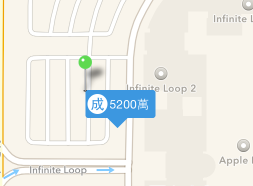
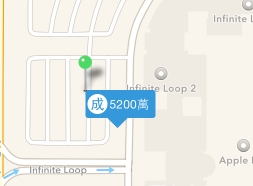
  • 但我們可以看出來他是在針頭的地方開始畫,所以來做點加工吧,在DrawCustomerView()最後面加上下面的code讓整個View位移來符合需求 ```swift
    self.frame = CGRect(x: 0, y: 0, width: rectangoView.frame.width, height: rectangoView.frame.height);
      self.centerOffset = CGPoint(x: 0, y: -21);
    
1
2
3
4
5
6
7
8
9
10
11
12
13
14
15
16
17
18
19
20
21
22
23
24
25
26
27
28
29
30
31
32
33
34
35
36
37
38
39
40
41
42
43
44
45
46
47
48
49
50
51
52
53
54
55
56
57
58
59
我們再看看...
[![](http://3.bp.blogspot.com/-mPNj85zu_a8/VPVsk5Xv-9I/AAAAAAAAEdA/faM54vpHC28/s400/%E8%9E%A2%E5%B9%95%E5%BF%AB%E7%85%A7%2B2015-03-03%2B%E4%B8%8B%E5%8D%884.10.45.png)](http://3.bp.blogspot.com/-mPNj85zu_a8/VPVsk5Xv-9I/AAAAAAAAEdA/faM54vpHC28/s1600/%E8%9E%A2%E5%B9%95%E5%BF%AB%E7%85%A7%2B2015-03-03%2B%E4%B8%8B%E5%8D%884.10.45.png)
* 看起來一切正常了,把一些測試的程式碼拿掉後完整如下
view controller ```swift
import UIKit
import CoreLocation
import MapKit
class MapViewController: UIViewController,CLLocationManagerDelegate , MKMapViewDelegate{

@IBOutlet weak var uimap: MKMapView!//地圖元件
var location : CLLocationManager!; //座標管理元件
override func viewDidLoad() {
super.viewDidLoad();

location = CLLocationManager();
location.delegate = self;
//詢問使用者是否同意給APP定位功能
location.requestWhenInUseAuthorization();
//開始接收目前位置資訊
location.startUpdatingLocation();
location.distanceFilter = CLLocationDistance(10); //表示移動10公尺再更新座標資訊
uimap.delegate = self;
}

override func viewDidDisappear(animated: Bool) {
//因為GPS功能很耗電,所以被敬執行時關閉定位功能
location.stopUpdatingLocation();
}
func locationManager(manager: CLLocationManager!, didUpdateLocations locations: [AnyObject]!) {
//取得目前的座標位置
let c = locations[0] as CLLocation;
let nowLocation = CLLocationCoordinate2D(latitude: c.coordinate.latitude, longitude: c.coordinate.longitude);
//將map中心點定在目前所在的位置
//span是地圖zoom in, zoom out的級距
let _span:MKCoordinateSpan = MKCoordinateSpan(latitudeDelta: 0.0005, longitudeDelta: 0.0005);
self.uimap.setRegion(MKCoordinateRegion(center: nowLocation, span: _span), animated: true);
//加入座標
addPointAnnotation(c.coordinate.latitude, longitude: c.coordinate.longitude);
}
//新增座標
private func addPointAnnotation(latitude:CLLocationDegrees , longitude:CLLocationDegrees){
//大頭針
var point:MKPointAnnotation = MKPointAnnotation();
//設定大頭針的座標位置
point.coordinate = CLLocationCoordinate2D(latitude: latitude, longitude: longitude);
uimap.addAnnotation(point);
}
func mapView(mapView: MKMapView!, viewForAnnotation annotation: MKAnnotation!) -> MKAnnotationView! {
var ann : MyAnnotation? = mapView.dequeueReusableAnnotationViewWithIdentifier("CustomerPoint") as? MyAnnotation;
if(ann == nil){
ann = MyAnnotation(annotation: annotation, reuseIdentifier: "CustomerPoint");
ann?.canShowCallout = true;
}
ann?.DrawCustomerView();
ann?.annotation = annotation;
return ann;
}
}

MyAnnotation Class完整如下

1
2
3
4
5
6
7
8
9
10
11
12
13
14
15
16
17
18
19
20
21
22
23
24
25
26
27
28
29
30
31
32
33
34
35
36
37
38
39
40
41
42
43
44
45
46
47
48
49
50
51
52
53
54
55
56
57
58
59
60
61
62
63
64
65
66
67
68
69
70
71
72
73
74
75
76
77
78
79
import Foundation
import MapKit
public class MyAnnotation : MKAnnotationView {
var rectangoView:UIView!; //長方形
var lblTitle:UILabel!;//Title
var lblIcon:UILabel!;//圓形icon
var circleView:UIView!; //原型view
var triangle:UIView!; //三角形
var DrawView:UIView!;//整個客製座標的畫布
override init(annotation: MKAnnotation!, reuseIdentifier: String!) {
super.init(annotation: annotation, reuseIdentifier: reuseIdentifier);
//先把每個圖層間的關係建立好,例如圓形跟title都在大大的長方形裡面,所以先add進去
lblTitle = UILabel();
lblIcon = UILabel();
rectangoView = UIView();
circleView = UIView();

circleView.addSubview(lblIcon);
rectangoView.addSubview(lblTitle)
rectangoView.addSubview(circleView);

//畫出三角形遮罩
//原理:將遮罩蓋到長方形上面,他會將不再這個框框範圍內的都過濾掉,就可以跑出三角形了
let path:UIBezierPath = UIBezierPath ();
path.moveToPoint(CGPoint(x: 0, y: 0));
path.addLineToPoint(CGPoint(x: 10, y: 10));
path.addLineToPoint(CGPoint(x: 20, y: 0));
path.addLineToPoint(CGPoint(x: 0, y: 0));

let masklayer:CAShapeLayer = CAShapeLayer ();//遮罩
masklayer.path = path.CGPath;
//遮罩遮出三角型
triangle = UIView(frame: CGRect(x: 22, y: 28, width: 20, height: 20));
triangle.layer.mask = masklayer;
DrawView = UIView();
DrawView.addSubview(rectangoView);
DrawView.addSubview(triangle);
self.addSubview(DrawView);
}

public required init(coder aDecoder: NSCoder) {
super.init(coder: aDecoder);
}
override init(frame: CGRect) {
super.init(frame: frame);
}
public func DrawCustomerView() {
//Title
lblTitle.text = "5200萬";
lblTitle.textColor = UIColor.whiteColor();
lblTitle.font = UIFont.systemFontOfSize(12);
lblTitle.frame.origin.x = 24;//中心位移
lblTitle.frame.origin.y = 7;
lblTitle.sizeToFit();
//大大的長方形
rectangoView.frame = CGRect(x: 0, y: 0, width: lblTitle.frame.width + 30, height: 28);//整體
rectangoView.backgroundColor = UIColor(red: 0.208, green:0.596 , blue: 0.859, alpha: 1);
rectangoView.layer.cornerRadius = 3;//設定圓角
//“icon”圓型小字
lblIcon.font = UIFont.systemFontOfSize(11);
lblIcon.font = UIFont.boldSystemFontOfSize(14);
lblIcon.text = "成";
lblIcon.textColor = rectangoView.backgroundColor;
lblIcon.sizeToFit();
lblIcon.center = CGPoint (x: 10, y: 10);
//圓形
circleView.frame = CGRect(x: 2, y: 4, width: 20, height: 20);//圓形標籤
circleView.backgroundColor = UIColor.whiteColor();
circleView.layer.cornerRadius = 10;
circleView.alpha = 1;
//畫三角形
triangle.backgroundColor = UIColor(red: 0.208, green:0.596 , blue: 0.859, alpha: 1);
//rectangoView.Transform 旋轉
DrawView.frame = CGRect(x: 0, y: 0, width:triangle.frame.width,height: 48);
self.frame = CGRect(x: 0, y: 0, width: rectangoView.frame.width, height: rectangoView.frame.height);
self.centerOffset = CGPoint(x: 0, y: -21);
}
}